> ## Documentation Index
> Fetch the complete documentation index at: https://alphacastio.mintlify.site/llms.txt
> Use this file to discover all available pages before exploring further.
# Transform with AI
> Describe a transformation in plain language and let Alphacast write and run the Python that performs it.
The **Transform with AI** step turns a description of what you want into Python that operates on the pipeline data. You refine the result through a chat conversation; the generated code is what actually runs.
## How it works
The step is split in two: the chat on the left, and the generated **Code** with a **Data Preview** tab on the right.
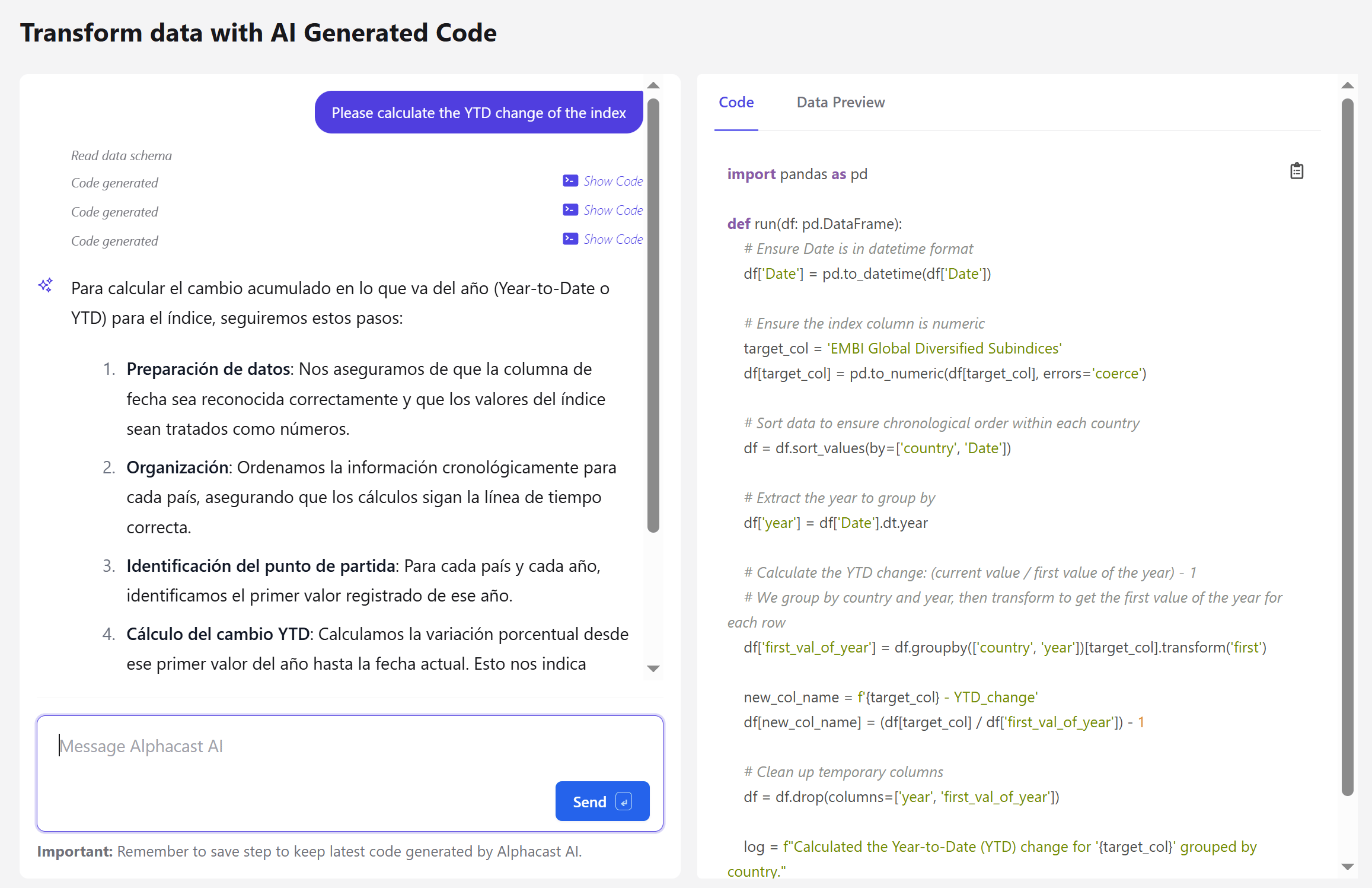 Write what you want in plain language — "calculate the YTD change of the index". Alphacast reads the data schema first, then explains its plan and generates the code.
The code is a `run(df)` function operating on a pandas DataFrame, shown in full. It is stored in the step configuration — not a hidden black box. Use **Data Preview** to see the result on real data.
Keep the conversation going to adjust the result. Each round generates new code, and earlier versions stay reachable through the **Show Code** links in the chat history.
Generating code does not persist it. **Save the step** to keep the latest generated code — otherwise you lose it when you navigate away.
Until code has been generated, the step passes data through unchanged and reports that no code was provided. Adding the step is therefore always safe — it does nothing until you give it something to do.
## What to know before using it
The generated code is reviewable, and reviewing it is worth the minute it takes. AI-written transformations can be subtly wrong in ways that produce plausible numbers — a misread column, an aggregation over the wrong axis, an off-by-one on a lag. Read the code and check the output against a case you already know.
For transformations that are well covered by a built-in step — a year-over-year change, a resample, a join — prefer the built-in one. It is faster, it is explicit in the pipeline, and there is nothing to review. Reach for AI when the transformation is genuinely custom.
## Next steps
Write a formula yourself, with no code generation.
Generate a written summary of the data instead.
Write what you want in plain language — "calculate the YTD change of the index". Alphacast reads the data schema first, then explains its plan and generates the code.
The code is a `run(df)` function operating on a pandas DataFrame, shown in full. It is stored in the step configuration — not a hidden black box. Use **Data Preview** to see the result on real data.
Keep the conversation going to adjust the result. Each round generates new code, and earlier versions stay reachable through the **Show Code** links in the chat history.
Generating code does not persist it. **Save the step** to keep the latest generated code — otherwise you lose it when you navigate away.
Until code has been generated, the step passes data through unchanged and reports that no code was provided. Adding the step is therefore always safe — it does nothing until you give it something to do.
## What to know before using it
The generated code is reviewable, and reviewing it is worth the minute it takes. AI-written transformations can be subtly wrong in ways that produce plausible numbers — a misread column, an aggregation over the wrong axis, an off-by-one on a lag. Read the code and check the output against a case you already know.
For transformations that are well covered by a built-in step — a year-over-year change, a resample, a join — prefer the built-in one. It is faster, it is explicit in the pipeline, and there is nothing to review. Reach for AI when the transformation is genuinely custom.
## Next steps
Write a formula yourself, with no code generation.
Generate a written summary of the data instead.