> ## Documentation Index
> Fetch the complete documentation index at: https://alphacastio.mintlify.site/llms.txt
> Use this file to discover all available pages before exploring further.
# Calculate Variable
> Create new columns with an Excel-like formula parser — arithmetic, row functions, group functions and rolling windows.
The **Calculate Variable** step is an all-purpose formula parser for creating new variables in a familiar, spreadsheet-like way. Dozens of operators, comparisons and functions combine freely.
This page covers how the step works. For the complete list of operators and functions, see the [formula reference](/steps/formula-reference).
## Writing a basic formula
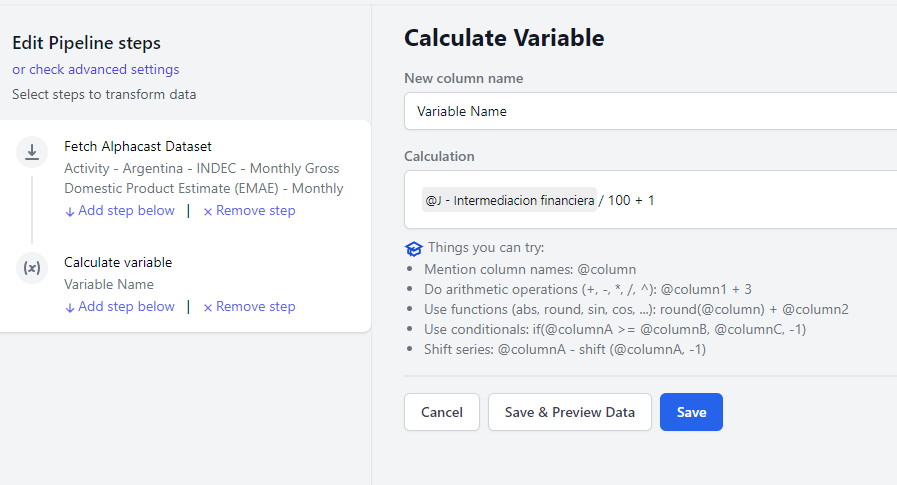
Create a pipeline (**Create new → Pipeline** in the top right), select a data source, then **Add step below → Calculate Variable**.
The rules:
* **Name the variable** in the textbox. Choosing a name that already exists overwrites that column.
* **Type `@` to reference a column.** Start typing the name and matching columns appear.
* **Use basic arithmetic** — `+`, `-`, `*`, `/`, `^`: `@column1 + 3`
* **Call functions** by name followed by parentheses, with commas between parameters: `round(@column) + @column2`
* **The result always has the same number of rows as the input**, even for calculations that would normally reduce dimensionality such as a total per group. See group functions below.
```
@Close + @Volume * 2
```
## Row functions
Row functions use only the values in a single row — no other periods or entities are involved. This includes `power`, `exp`, `sqrt`, `log`, `abs`, `trunc`, `round`, `sin`, `cos` and more.
```
log(@Close) + sqrt(@Volume)
```
## Nested calculations
Calculations nest inside other calculations as parameters:
```
log(exp(@Close))
```
## Group functions
Group functions calculate over subgroups of the dataset. The data is split by the unique values of the entities given as parameters, and the calculation runs separately for each group. Those entities can be the dataset's real entities, any other variable, or even the result of a nested calculation.
```
Cumulative price change for each ticker, against its first price
@Close / first(@Close, @Ticker)
Cumulative sales per salesperson
cumsum(@sales, @salesperson)
Each product's share of total sales on that date
@sales / sum(@sales, @date)
```
## Rolling window functions
Rolling windows are group functions that also calculate within a moving window. You define how many periods the window spans.
```
20-day moving average for each ticker
rollingmean(@Close, 20, @Ticker)
```
## Date and time functions
These operate on datetime variables — usually the `@Date` entity — and include `year`, `month`, `day`, `week`, `dayofyear` and others.
```
Extract the year from the date entity
year(@Date)
```
## Video tutorial
This tutorial is in Spanish.
## Next steps
Every operator and function, grouped by category.
Prebuilt economic transformations that need no formula.
 ## Row functions
Row functions use only the values in a single row — no other periods or entities are involved. This includes `power`, `exp`, `sqrt`, `log`, `abs`, `trunc`, `round`, `sin`, `cos` and more.
```
log(@Close) + sqrt(@Volume)
```
## Nested calculations
Calculations nest inside other calculations as parameters:
```
log(exp(@Close))
```
## Group functions
Group functions calculate over subgroups of the dataset. The data is split by the unique values of the entities given as parameters, and the calculation runs separately for each group. Those entities can be the dataset's real entities, any other variable, or even the result of a nested calculation.
```
Cumulative price change for each ticker, against its first price
@Close / first(@Close, @Ticker)
Cumulative sales per salesperson
cumsum(@sales, @salesperson)
Each product's share of total sales on that date
@sales / sum(@sales, @date)
```
## Rolling window functions
Rolling windows are group functions that also calculate within a moving window. You define how many periods the window spans.
```
20-day moving average for each ticker
rollingmean(@Close, 20, @Ticker)
```
## Date and time functions
These operate on datetime variables — usually the `@Date` entity — and include `year`, `month`, `day`, `week`, `dayofyear` and others.
```
Extract the year from the date entity
year(@Date)
```
## Video tutorial
## Row functions
Row functions use only the values in a single row — no other periods or entities are involved. This includes `power`, `exp`, `sqrt`, `log`, `abs`, `trunc`, `round`, `sin`, `cos` and more.
```
log(@Close) + sqrt(@Volume)
```
## Nested calculations
Calculations nest inside other calculations as parameters:
```
log(exp(@Close))
```
## Group functions
Group functions calculate over subgroups of the dataset. The data is split by the unique values of the entities given as parameters, and the calculation runs separately for each group. Those entities can be the dataset's real entities, any other variable, or even the result of a nested calculation.
```
Cumulative price change for each ticker, against its first price
@Close / first(@Close, @Ticker)
Cumulative sales per salesperson
cumsum(@sales, @salesperson)
Each product's share of total sales on that date
@sales / sum(@sales, @date)
```
## Rolling window functions
Rolling windows are group functions that also calculate within a moving window. You define how many periods the window spans.
```
20-day moving average for each ticker
rollingmean(@Close, 20, @Ticker)
```
## Date and time functions
These operate on datetime variables — usually the `@Date` entity — and include `year`, `month`, `day`, `week`, `dayofyear` and others.
```
Extract the year from the date entity
year(@Date)
```
## Video tutorial