> ## Documentation Index
> Fetch the complete documentation index at: https://alphacastio.mintlify.site/llms.txt
> Use this file to discover all available pages before exploring further.
# Filter Rows
> Drop rows that don't meet a condition, using the same formula grammar as Calculate Variable.
The **Filter Rows** step keeps rows that satisfy a condition — either rows from a specific date onward, or rows whose values meet a criterion you define.
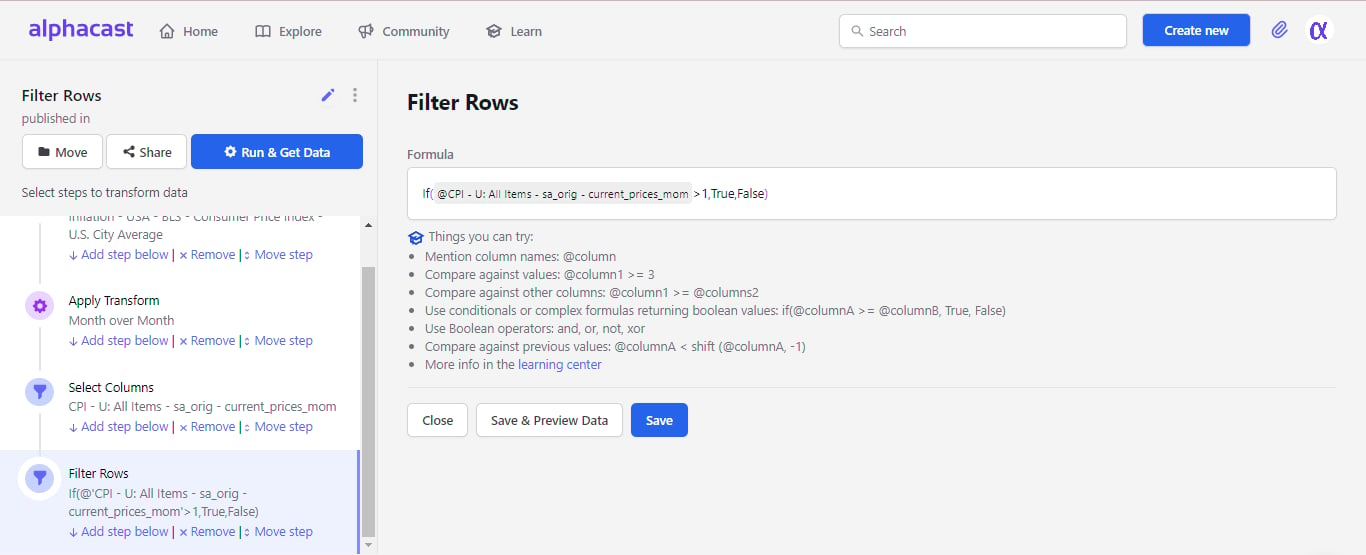 The criterion can be a logical function, an arithmetic operation, or a comparison — anything that evaluates to true or false for a row.
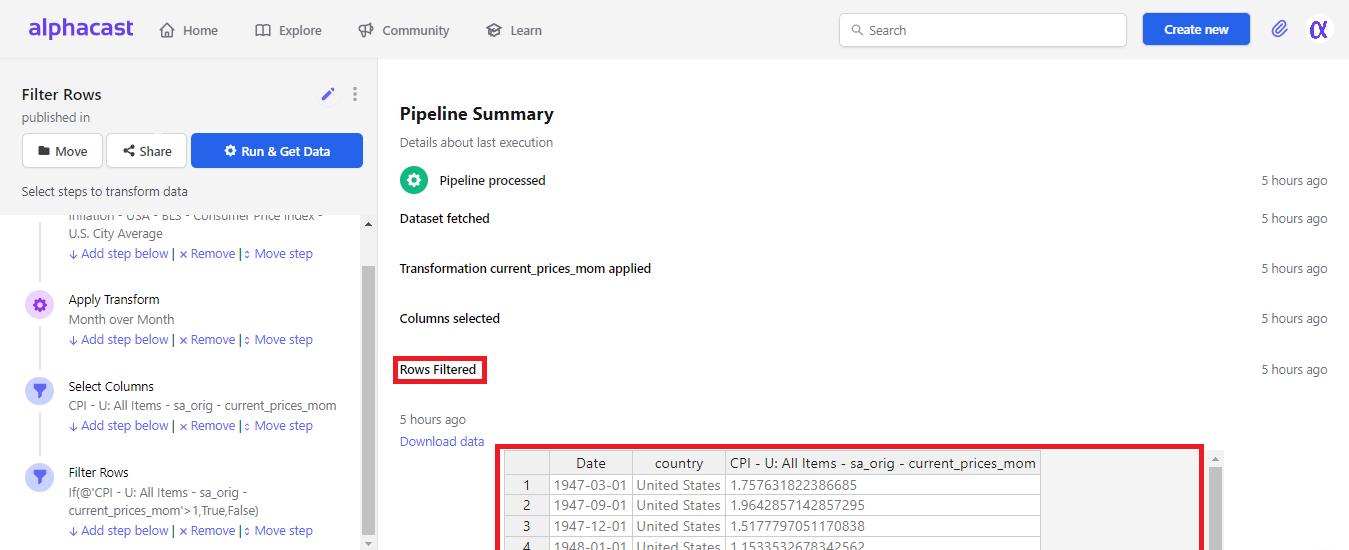 Conditions use the same grammar as [Calculate Variable](/steps/calculate-variable). See the [formula reference](/steps/formula-reference) for the full list of operators, comparisons and functions.
## Next steps
Every operator and function available in a condition.
Order the surviving rows.
Conditions use the same grammar as [Calculate Variable](/steps/calculate-variable). See the [formula reference](/steps/formula-reference) for the full list of operators, comparisons and functions.
## Next steps
Every operator and function available in a condition.
Order the surviving rows.