> ## Documentation Index
> Fetch the complete documentation index at: https://alphacastio.mintlify.site/llms.txt
> Use this file to discover all available pages before exploring further.
# Merge with Dataset
> Join two datasets on their common entities, choosing which rows survive when they don't match.
The **Merge with Dataset** step combines datasets through their shared entities. You choose which entities match, and what happens to rows that have no counterpart in the other dataset.
## Why not a spreadsheet
If you have joined data sources before, you have probably done it with some combination of `VLOOKUP`, `HLOOKUP` and `MATCH`. That works well until:
1. You have **many** rows — `VLOOKUP` gets slow.
2. You need to match on more than one field.
3. The position of rows or columns changes.
4. You only want the rows present in both datasets.
5. A source changes its number of rows and you have to re-copy or adjust formulas.
A pipeline merge handles all five, and keeps the datasets connected so the result updates when the sources do.
## How to merge
Go to **Create new → Pipeline**, select the repository and a name. In **Fetch dataset**, pick the first dataset and press **Save**.
Click **Add step below** and choose **Merge with Dataset**, then select the second dataset.
Merges work best when both datasets share a frequency. If they don't, run [Change frequency](/steps/resample) first.
Tell the system which fields join the two datasets.
* Usually there is a single **Date** field, and the datasets merge on it.
* Datasets can have more than one entity — data by date *and* by country, for example. In that case identify which field of the second dataset corresponds to the country field of the first.
* If no second field is selected, the join happens on date alone. Rows from dataset B may then appear duplicated when a date occurs more than once in dataset A.
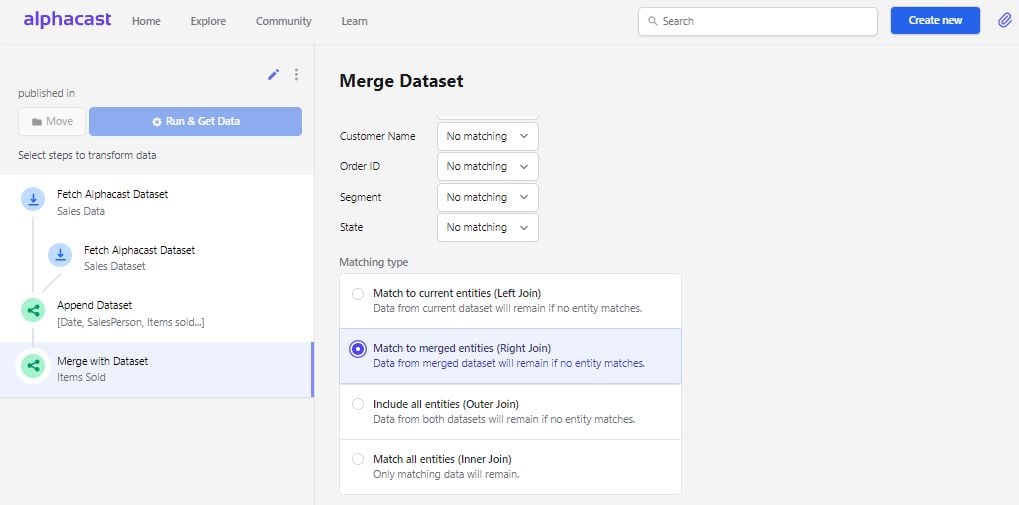 In this example two monthly datasets share the same entity (Argentina). With **Left join**, all rows from the first dataset (EMAE) are kept, and Consumer Price Index values are attached wherever date and entity match.
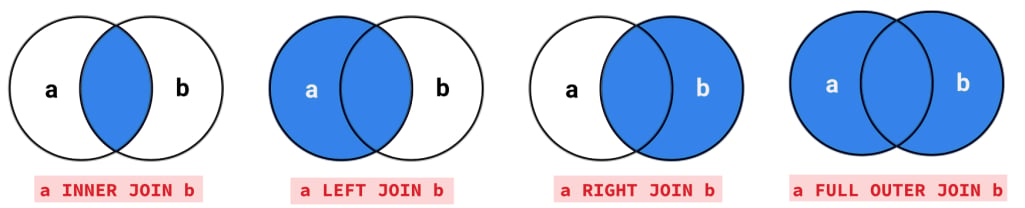 | Join | Result |
| --------- | --------------------------------------------------------- |
| **Inner** | Only rows that match in both datasets. |
| **Left** | All rows of dataset A; unmatched rows of B are discarded. |
| **Right** | All rows of dataset B; unmatched rows of A are discarded. |
| **Outer** | All rows from both datasets, matched or not. |
The result combines the columns of both datasets. Carry on transforming it, or [publish](/steps/publish) it as a new dataset.
To stack datasets vertically rather than join them side by side, use [Append branches](/steps/append-dataset).
## Next steps
Combine datasets with the same structure end to end.
Compute new columns across the merged data.
| Join | Result |
| --------- | --------------------------------------------------------- |
| **Inner** | Only rows that match in both datasets. |
| **Left** | All rows of dataset A; unmatched rows of B are discarded. |
| **Right** | All rows of dataset B; unmatched rows of A are discarded. |
| **Outer** | All rows from both datasets, matched or not. |
The result combines the columns of both datasets. Carry on transforming it, or [publish](/steps/publish) it as a new dataset.
To stack datasets vertically rather than join them side by side, use [Append branches](/steps/append-dataset).
## Next steps
Combine datasets with the same structure end to end.
Compute new columns across the merged data.