> ## Documentation Index
> Fetch the complete documentation index at: https://alphacastio.mintlify.site/llms.txt
> Use this file to discover all available pages before exploring further.
# Reorder Rows
> Put entity values in a deliberate, non-alphabetical order — useful when chart and table legends should follow a specific sequence.
The **Reorder Rows** step arranges rows by putting the values of an entity column into an explicit order you define. Unlike [Sort Rows](/steps/sort-rows), which sorts by value, this step lets you impose an order that isn't alphabetical or numerical — regions ordered by size, categories in reporting order, countries in a conventional sequence.
## Configuration
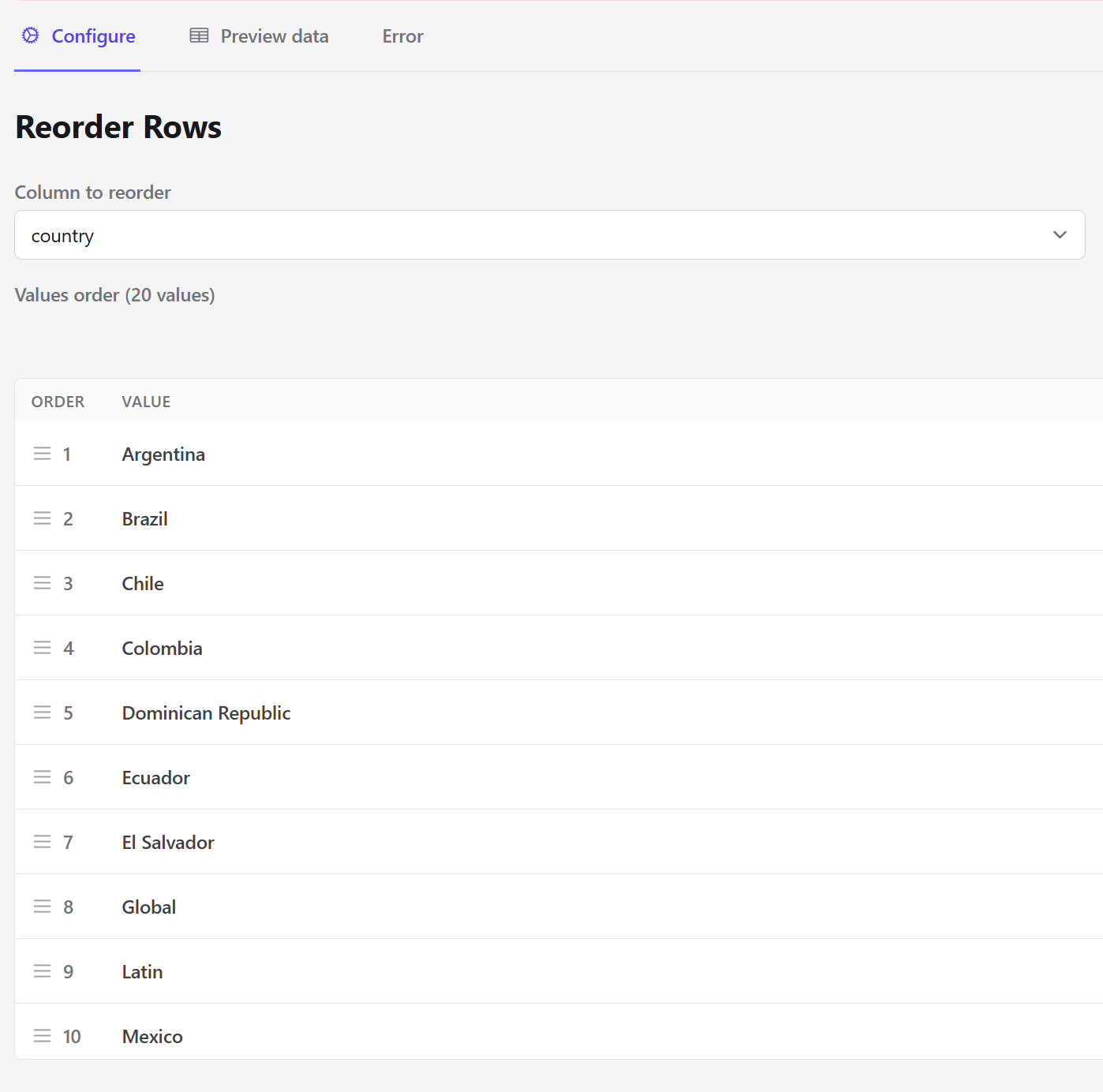 | Field | Description |
| ----------------- | ---------------------------------------------------------------------------------------------------------- |
| Column to reorder | The entity column whose values you want to order. |
| Values order | The distinct values found in that column, listed with their position. Drag a row by its handle to move it. |
Rows are then sorted by that sequence and, within it, by date.
Any value present in the data but missing from your list is appended after the ones you ordered, rather than dropped. You only need to list the values you care about positioning.
The step fails if the dataset has no entity columns, or if the selected column is not present at that point in the pipeline.
This matters most right before an output step. Legend and series order in [Create a Chart](/steps/chart-data) and row order in [Create a Table](/steps/table-view) follow the order the data arrives in.
## Next steps
Sort by value rather than by an explicit sequence.
Change column order instead.
| Field | Description |
| ----------------- | ---------------------------------------------------------------------------------------------------------- |
| Column to reorder | The entity column whose values you want to order. |
| Values order | The distinct values found in that column, listed with their position. Drag a row by its handle to move it. |
Rows are then sorted by that sequence and, within it, by date.
Any value present in the data but missing from your list is appended after the ones you ordered, rather than dropped. You only need to list the values you care about positioning.
The step fails if the dataset has no entity columns, or if the selected column is not present at that point in the pipeline.
This matters most right before an output step. Legend and series order in [Create a Chart](/steps/chart-data) and row order in [Create a Table](/steps/table-view) follow the order the data arrives in.
## Next steps
Sort by value rather than by an explicit sequence.
Change column order instead.